Monday, June 11, 2012

Monogrammed Rhinestone Bags by Becki

Monogrammed Rhinestone Bags by Becki

Hello, Becki here with a new project  that I have been dying to try - rhinestones.  These little shiny stones have had me scared for quite a while but I toughened up and decided to give them a go.  Boy, am I glad I did.  I have no idea why I was so scared of them.  Now I am trying to think of other things to bling up!

I thought for my first project I would go small and simple.  I was at my local hobby store and saw these little canvas bags.  I thought they would be great for my three nieces and I would have one left over for me!

As I am just learning how to use the rhinestone template material and this feature in Funtime, I went with just making initials.  I used the Hobo font that could with the software and brought a R, M, K, and A to my mat.  I used the rhinestone feature to change my font into circles to cut out in the template material.


Here's a picture of my cutout template and the rhinestones all ready to go on the transfer tape.   I used my deep cut blade on a force of 2 with a speed of 2 to cut the thick template.  Now I was ready to place the tape on my bag
The initial is now ready to be ironed down.  I placed a pillowcase over the tape and held it over the stones for about 45 seconds on the Wool setting.  After it cooled for about 10 seconds I peeled up the tape making sure the rhinestones were affixed to the bag.  Once everything looked good, I turned the bag inside out and hit the backside with the iron for another 20 seconds to make sure they were really stuck.

Take a look at how they turned out.  I think they are soooo cute!


Thanks for stopping by and taking a look.  Hope you aren't as scared as me and get to using those rhinestones.  Have a great day and happy crafting!

Supplies:
10SS crystal rhinestones
rhinestone template material
rhinestone transfer tape
4 mini bags
Becki Wagner- Bosskut Design Team

Saturday, June 9, 2012

Etched Mugs by Jamie G.


Files Used: Scroll by Phyllis Parkins 0986
Materials: Glass Beer Mugs, Etching Cream, Repositional Vinyl

Here's a great, personalized Father's Day gift that he'll sure to love!!

I started out by purchasing a set of 6 glass mugs. In the past I have used contact paper available for purchase at your local grocery stores but have unfortunately not had much luck with it. For some reason, it doesn't seem that the contact paper adheres to the glass very well. So, I have been using repositional vinyl, available for purchase at Bosskut.


For the first glass (the one on the right) in Funtime, I used the true type font AmericanUncIniD and typed out the Irish toast, "May there be a generation of children on the children of your children." Added the Scroll by Phyllis Parkins 0986. Then typed "Happy Father's Day" in the Funtime font Bookman Bold. With the alignment tool, I centered all 3 vertically.

When it came time to cut my vinyl, I made sure to use the weeding option in the Cutting Control Panel. This made it signficantly easier when I started weeding out the vinyl that I wanted to place on the glass mug.


Here's a picture of just how small the letters were cut and how well the Gazelle did!! I used a vinyl blade, force of 1, and a speed of 1. She did just BEAUTIFUL!! Honestly the worst part was weeding each of the small letters. Amazing how you don't notice how many letters have small bits in the middle of them until you have to weed them. At this point you'll see that I was still arguing with where I wanted the small bits placed. :o)


With the second glass I created an image in my PaintShop Pro for the bar that my husband is currently building in our basement. Due to his military background, he's decided to name the bar "Check Point Pub." The beer mugs are from the true type font PrositBats, "Check Point" is the true type font Army, and "Pub" is the true type font BrushScrD.

I saved the image as a jpeg and then imported it into Funtime. After using the vectorization, I cleaned up the image a bit so that I would have a cleaner cut. With a vinyl blade, I cut the image into the vinyl and applied it to the glass mug using transfer tape. I've personally found that the transfer tape is a MUST HAVE when working with vinyl on any project.

Jamie Gillahan – Bosskut Design Team Member

Thursday, June 7, 2012

Presley Goes Hollywood Layout by Judy Stark


   Presley and her Mom flew from Orlando to L.A. last month and between us, Presley was better traveling than her Mom, Kimberly!  They had turbulants on the return flight that were quite intense at times. My daughter Kimberly spent her time instant messaging me "When is this going to end? Am I going to die?? etc. Presley proceded to put her hands up in the air as she would on a roller coaster saying ,"Whoa.. that was rocky !." So, some of the other passengers decided to do as Presley while Kimberly fell to pieces!


On to my layout....  I wanted this to be a fun type layout and decided to design my own background paper first.  After printing it, I was ready to put my Bosskut Gazelle to work. I used the Bosskut Lattice frame and cut those to size. I also cut the card band file. I then designed the titles in my Funtime program and print and cut those.  I then imported my jpg of the LaLaLand Traveling Marci into my Funtime and used the personal path method to import Presley's luggage pattern onto the stamp. If you haven't seen the latest tutorial by Phyllis, here is the link:   http://bosskutforum.com/blog/?p=1974 


To finish up, I added ribbons, some glitter and stamped.  I feel I kept this fun and as you can see, Presley decided she was a Rock Star and Movie Star!!

Judy Stark- Bosskut Design Team Leader

Tuesday, June 5, 2012

Father's Day Gift Box by Jamie G.


Files Used: Vintage Framette II by Karen Taglia 0372
Materials: Cardstock, silver brads, 1/8" thick 3-D dots

My dearest husband is always so hard to buy for!! I always look for that special something for him that I know he will truly cherish and appreciate. Since he has always been VERY supportive of my crafting and gets to see firsthand the time and love I put into each item, I decided it was time to make something special for him.
I started with a basic origami style box that I created a cut file in Funtime. Then decorated the box with matching cardstock that I cut to size based on my dimensions of the box. Using the Vintage Framette II by Karen Taglia 0372, I framed the sentiment "Happy Father's Day." I also attached 4 silver brads to the corners of the vintage framette.


Using the option to use ANY pen of my choice, in the Funtime font, Architec, I "cut" out the sentiment "Happy Father's Day." Then I removed my pen and quickly put the blade holder back in to cut the rectangle out around the sentiment. So EASY and I LOVE it!! :o)  I attached the "Happy Father's Day" sentiment to the box using 1/8" thick 3-D dots for some added dimensions.


With the box finished, my daughter, son, and I will fill it with "treasures" for Daddy!! Of course, with my babies being 3 years-old and 22 months I'm sure that Dad will get rocks, weeds "acting" as flowers, and whatever other goodies we can find! :o) I know that he's going to LOVE it!!

Jamie Gillahan – Bosskut Design Team Member

For more projects and information, please click links below:

Monday, June 4, 2012

Graduation Treat Boxes by Becki W.


Since I have graduation on the brain, I thought it would be nice to make up some treat boxes for the folks who show up at my oldest graduation party at the end of this month.


I went searching for some cute graphics for the boxes and came across the perfect little embellishments for the top of the box - a diploma and grad cap from Boss Kut.  These were just the perfect touch for my simple treats.


Just cut a treat box of your choice, grab some ribbon and cut your 2" circle and your graduation elements.  It's that simple to make adorable treat boxes!  Well, off to make more graduation party decorations.  Have a great week and happy crafting!

Supplies:
Graduation Cap by Boss Kut
Diploma by Boss Kut


Becki - Bosskut Design Team

Sunday, June 3, 2012

Frosted Mug by Kenya G


Hello Everyone!
Who doesn’t enjoy a large glass of a refreshing beverage? Summer is getting closer and so is Father’s Day! Masculine projects always give me a run for my money! Today, I am sharing an easy and generic Father’s Day gift that can be given to any father or father figure in your life! My hubby is not a beer drinker BUT he does like Root Beer. Can you imagine this mug coming right out of the freezer just waiting for some ice cold Root Beer to be poured in? Ah yes, I have made myself thirsty J


To make this mug:
1.       Weld two of the 0983 vines together. Then I used a FunTime font for the word “DAD”.
2.       Placed a piece of scrap vinyl on the mat (vinyl can be purchase at BossKut.com); this will become your mask.
3.       Cut the images using the BossKut Gazelle.
4.       Once the cutting is complete, weed the positive image out and adhere the negative of the images to the mug using Transfer Vinyl Tape (can be purchased at BossKut.com).
5.       Use a generous amount of Etching Cream to the images (make sure the cream does not go on the parts you do not want etched).
6.       Leave cream on for about 10-15 minutes (depending on how etched you like your project).
7.       Take off the access amount of etching cream (can be put back in the container for later use) and clean the remaining cream with warm water.
8.       Carefully take off the mask.
9.       Wash your mug and enjoy!
I hope you all enjoyed today’s project! Remember to stop by BossKut.com for more files and inspiration!

 Kenya~
                                                                        

Friday, June 1, 2012

Print-n-Cut with Multiple Images by Judy Stark


Print-n-Cut with Multiple Images by Judy Stark
If you already purchased a Bosskut Gazelle, then you have the Funtime software which was free with your purchase and over 700 free files. The Gazelles now have the 3 pt registration and print and cuts are right on! 

Did you know you can use your cutting files and make your own Print n Cuts?
If not, read further!  The above screen are a couple cutting files I am going to convert to PrintnCuts. I first use the color bar and fill in the files with the colors I want to use.  Below is a photo of the cutting files in wire mode.

I now need to convert these files to jpgs for my printing. Just a click on the button in my Funtime.


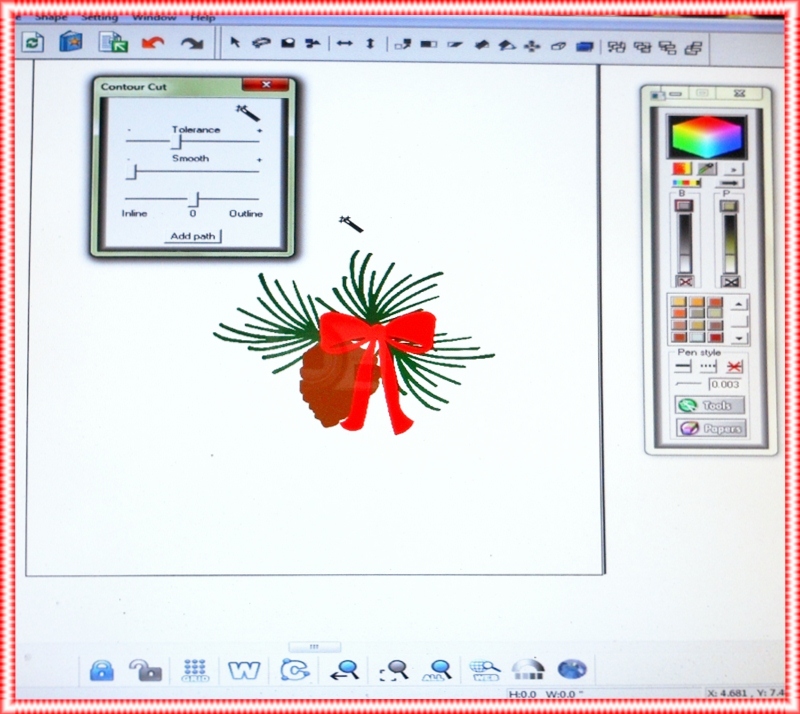
I decided to combine the pine cone file and the ribbon to make one file of these together.  You do this step before converting to image. Be sure you have your files ungrouped. Select the file. You will see the little arrows.


Go to the top of your bar and to the IMAGE button and click convert to image.  A new window will open.


Change the resolution to 300.  Then click OK and window will close.


My Jpg file is now on my work area.  (Look to the far upper right)  I can now move the cutting file off of my work area.  Repeat on each one separately.  Doesn't take but under a minute to do all of them. 


I am now ready to add the cutting paths to my jpgs. You will do one at a time. I always change the cutline color in case I only want to cut a few out of the group next time.


Look on the left side of your screen near the botttom for the WAND icon .  Click this button and the window you need will open. I use the above settings for my wand as it is right by the cutting line.


Left click the wand just outside of the jpg but near it. You will see your outside cutting line appear.  If you are happy with it, click on the add path that is on the bottom of the open wand window. I usually go to my color bar and RIGHT click my mouse for a different color for my next one.


You are almost done!  I usually click the W (for wire) button which is on the bottom of my window.  (4th icon )  See how all my print n cut images keep their colors but my original files don't?  I now delete the original cutting files on the far left of my work area. 

Go to the File window,open and add your crop marks.  Be sure you are using the 8.5 by 11 inch paper.


You are now ready to print and then cut!!  Be sure you save your file above so you can use it again if you want to. I wrote this tutorial to show you how to make your own Print n Cuts but if you have purchased PrintnCut jpgs, then just import into your Funtime screen and follow the steps for the Wand feature on. 

  If you need instructions on using the print n cut feature, check our Free Bosskut online Training Tutorial page. Great tutorials and videos by Jules and Terri M.  http://training.bosskutforum.com/.
  Phyllis has a great tutorial on Adding Patterns to your  Designs 

Enjoy and have fun making your Print and Cuts!  Below is one I made using the Tulip Doily and adding the Ruffles Butterfly.  

 Judy Tesla Stark  - Bosskut Design Team Leader

Wednesday, May 30, 2012

Graduation from Pre-K Layout By Judy Stark


     Graduation time is upon us!  Cash is officially a "Little Man" now as he leaves Pre-K to enter Kindergarten next year. So congratulations and Grandma actually got your special page done in time!
   After selecting my colors and papers for this layout, I cut the frames using my Bosskut Gazelle. The fun begins!


I really enjoy coloring stamps to use for my projects!  This is one of the newly released LaLaLand stamps now available at Bosskut.
"Graduation Luka".  Check the new releases out.


I then cut my Bookworm file and the clipboard using my Gazelle.

 Files : Book Worm by Olivia Myers  and  Clip Board by Olivia Myers  .  I used the clipboard pattern for my largest frame. 
 After placing and assembling my pieces, I added ribbon for the trim. 

Judy Stark- Bosskut Design Team   

Monday, May 28, 2012

BK "Parker" Flower Hair Clip by Becki W


While swimming in the sea of testosterone I call my home, I realized how sad I am that I cannot make use of all those cute little hair clips floating around the Internet.  You see, I am much too old to pull off super girly pink hair accessories and definitely not cool enough.  So what is a girl who is awash in boys to do?  Make them anyway and dare someone to make fun of you!

So I got my brain working on how I was going to accomplish this after I saw the Parker Pop-Kut flower.  I knew I wanted to use this cute flower but I didn't think paper would hold up too well in the rain.  So what would?  I just happen to look within the many bins in my craft room and see that I had pink foam about 2mm thick. Can my Gazelle cut foam?  Why yes, Virginia, it can!!   I love having a machine that does just about everything except the dishes.


These are pretty simple to make.  You just need one of those alligator hair clips you can purchase at the craft store, foam 2mm or under and a super cute file like I have here.  If your flower is not going to be big enough (like the one on the right) to cover the whole clip, feel free to wrap a coordinating ribbon around it.  Oh and hot glue.
 
Since I had foam that is on the thicker end of the scale for the Gazelle, you still may need to pop it out of the foam after cutting.  I put my Deep Cut blade into the holder with 3 O-rings.  I set my Speed set on 2, force 2 and had it cut twice.  Pop them out of the foam and waa-laa, instant beauty! To give them a little stability, I cut two circles out of heavy card stock to hot glue to the back of the flower, then glued them once again with hot glue to the clips.  Embellish as desired.


Becki - Bosskut Design Team


Memorial Day Layout by Lori m.


Here’s a fun page to scrap your holiday photos.  Memorial Day is such a memorable day to celebrate with family and friends.

Using my Gazelle, and a couple great files from www.bosskutdiecuts.com my page is ready for the photo.

Files use:


Add some pretty backing paper and a title, done.

Thanks for looking!


Friday, May 25, 2012

Wednesday, May 23, 2012

Grape Festival Layout by Lori m.


How many of you have photos from festivals needing to be scrapped?  Here’s one I started ahead of time this year.

Grape Festival Layout made easy using Bosskutdiecuts and my trusty Bosskut Gazelle. 
Everything was cut out using my Gazelle and some files from www.bosskutdiecuts.com


Everything was cut out using my Gazelle and some files from www.bosskutdiecuts.com 


How yummy does this pie look?  I added some inked edges to give the pie a little more of a baked effect and it work!


Files I used:

3. Popkut Grapes


Enjoy, thank you for looking.

Lori m. -  Bosskut Design Team


Tuesday, May 22, 2012

Doily Plaques by Lori m.


Sometimes doilies are just too pretty not to display, so, I decided to make them into plaques.

Love, love displaying the pretty Bosskut doilies and with a little mod podge they’ll hold up even better.

I added one of my favorite daisies to the center for a little more pizazz.
 

Visit www.bosskutdiecuts.com to pick up your Butterfly doily #BKD101 file, possibilities, “endless”! The daisy is #0616 Daisies.

Enjoy!

Lori m. - Bosskut Design Team Member

Monday, May 21, 2012

Thank You Card by Becki


Who knew you could get so many die-cuts on a card in such a small space?  Well, I guess when you layer them up, huh?  I needed a Thank You card like yesterday but it was for someone very special for a very special thank you so it had to also look good.  

On Mother's Day, I received a super awesome, unbelievable gift.  Ironically, my husband or kids did not give it to me.  It was from an adorable friend who I have become quite fond of and not just because she gives totally awesome gifts either.  I thought she was a peach before that.  ^__^  It was so undeserved too.  I am sooo humbled by it, you just don't know. So on to my lovely card for a lovely lady.


So I used three of Boss Kuts adorable designs.  On another ironic note, I used two of the new Pop-Kuts but there was little popping.  While I love the popping up of these files, I liked the look layered too.  See how versatile these designs are?  I thought it would be uber-chic to say Thank You in French, hence the "merci" stamp.  I mean, isn't that fancier than just saying "thanks?"  Heheh.  I used the new Loopy Doily for the bottom of my die-cut stack, then the new Parker Pop-Kut flower (yes, all three layers) and then finally for the top, the Ruffled Butterfly.  I did only use the Pop-Kut top part.  There are two layers to this file.  All cuts are 2" and under.  They still cut like a dream or a hot knife through butter.  Whatever analogy floats your boat.  o_O

That's pretty much it.  This was super fast with the help of my handy dandy cutter, the amazing pink lady herself - the Gazelle.  Oh, she's a sleek one I tell ya.  I just need to find a proper name for her.  Do you name your machines?  I can barely name my kids, let alone a machine.  hehe  If you think of any good ones, leave them in the comments section.  I would love to hear them, um, I think.  I hope I didn't just open a can of worms.  ;P

Supplies:
Loopy Doily by Boss Kut
Parker Pop-Kut Flower by Boss Kut